
On this page
1. Give each milestone a clear result
In the contract builder, scroll to Payment Info. Each milestone has a Name of milestone, Due date and Amount. Use + Add Milestone for another phase.
Name the result the client can recognize: “Reconciled September summary” is more useful than “Phase 1.” Keep the milestone aligned with the deliverables already described in the agreement.
2. Put dates and amounts in order
The Payment & Milestones guide says due dates must be in the future and each milestone must come after the one before it. Review the sequence as a whole before completing the agreement.
The same guide describes separate invoices associated with milestone due dates. Check the actual invoice state on the job when work begins; a planned milestone is not evidence of an invoice being sent, funded or paid. Minimum amounts can depend on service type. Read the active field and any validation message for the service you selected.
3. Compare total cost, fee and net
Review Total cost, the displayed Uncle Kam fee and You’ll receive. Total cost is the sum being proposed to the client. You’ll receive is the amount shown after the fee in this calculation.
| Milestone | Planned output | Example amount |
|---|---|---|
| 1 · Reconciliation | Reconciled September transaction summary | $600 |
| 2 · Review | Review meeting and unresolved-items list | $300 |
The example totals $900 before the platform fee. Choose actual future dates in sequence. These amounts illustrate a work plan; they are not recommended pricing, a fee quote or an invoice.
If you change an amount or service, read the totals again. Resolve a surprising fee or validation result before committing to the job.
4. Find the job with the status filters
Open Jobs. Search by client name, or choose All, Pending, Initiated, In Progress, Completed, Approved or Canceled. If a record disappears, clear search and return to All.
Selecting a status filters the list. It does not move a job into that state. Open the relevant job to inspect its agreement, deliverables, approval and financial records before deciding what happens next.
5. Check the event that matters
| Question | Record to inspect |
|---|---|
| Has the client agreed? | The agreement’s signing state. |
| Has the deliverable been reviewed? | The actual delivery, revision or approval record. |
| Has payment occurred? | The relevant invoice and payment result. |
Keep those checks separate. A Completed or Approved filter name alone cannot establish that a payment cleared or that funds became available.
Separate your service price from platform charges
Your milestone amounts describe the professional work agreed with the client. For Uncle Kam–supplied clients, the 30% platform fee on client payments is separate from the opportunity access charge. It does not make a funding package or an opportunity price the price of your client engagement.
Common questions
Can I plan a job before setting milestones?
The builder’s Draft Mode disables the milestone area and allows draft preparation without milestones. Revisit scope, dates and pricing before publication.
Does choosing Approved approve the job?
No. The Jobs controls filter which records are shown. Inspect the individual job and its approval actions separately.
Are milestone due dates payment receipts?
No. A date in a plan does not establish that an invoice was sent, paid or settled. Inspect the actual financial record.
What if the minimum amount looks different?
Check the selected service and the current validation message. The captured field and Field Guide describe service-dependent minimums, so do not apply one screenshot’s amount to every service.
Learn more
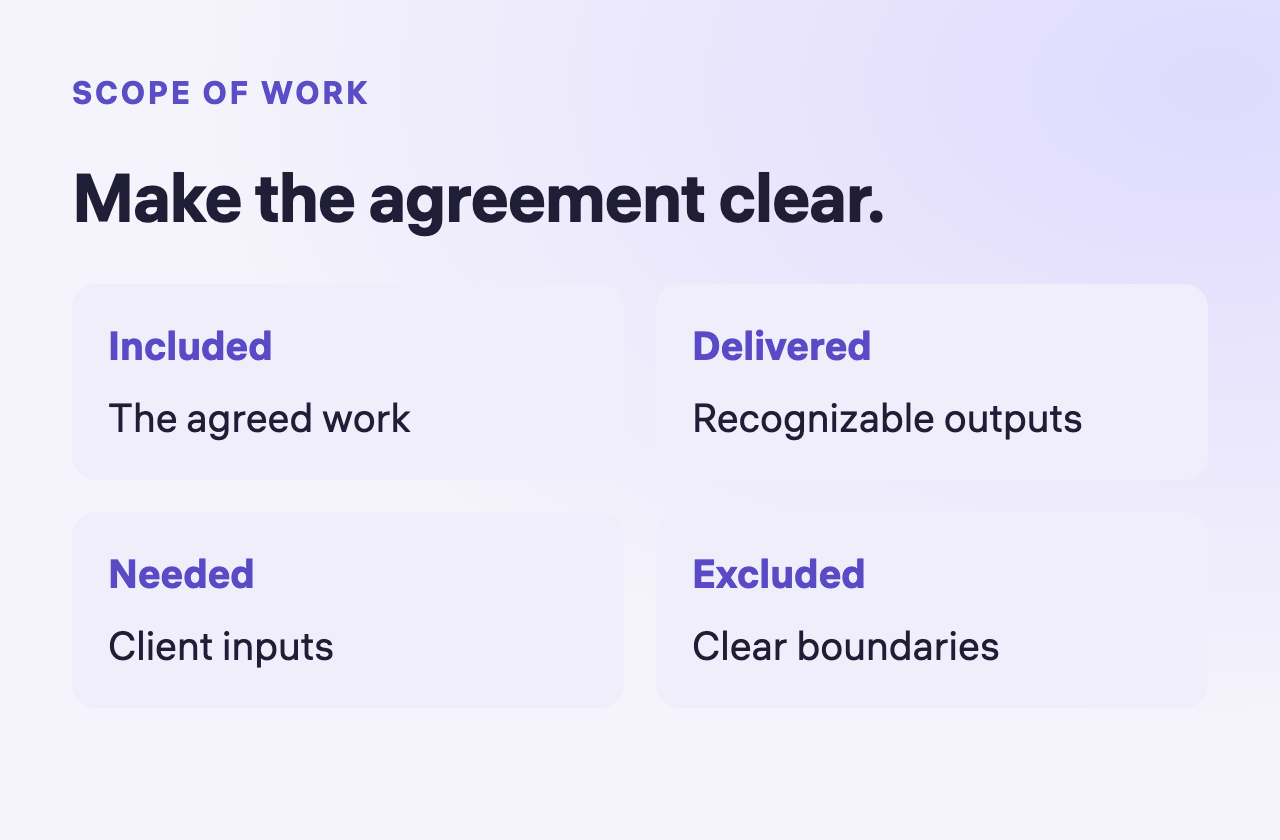
Prepare a contract and review its scope
Define the service, outputs and exclusions before reviewing the agreement.
Read guide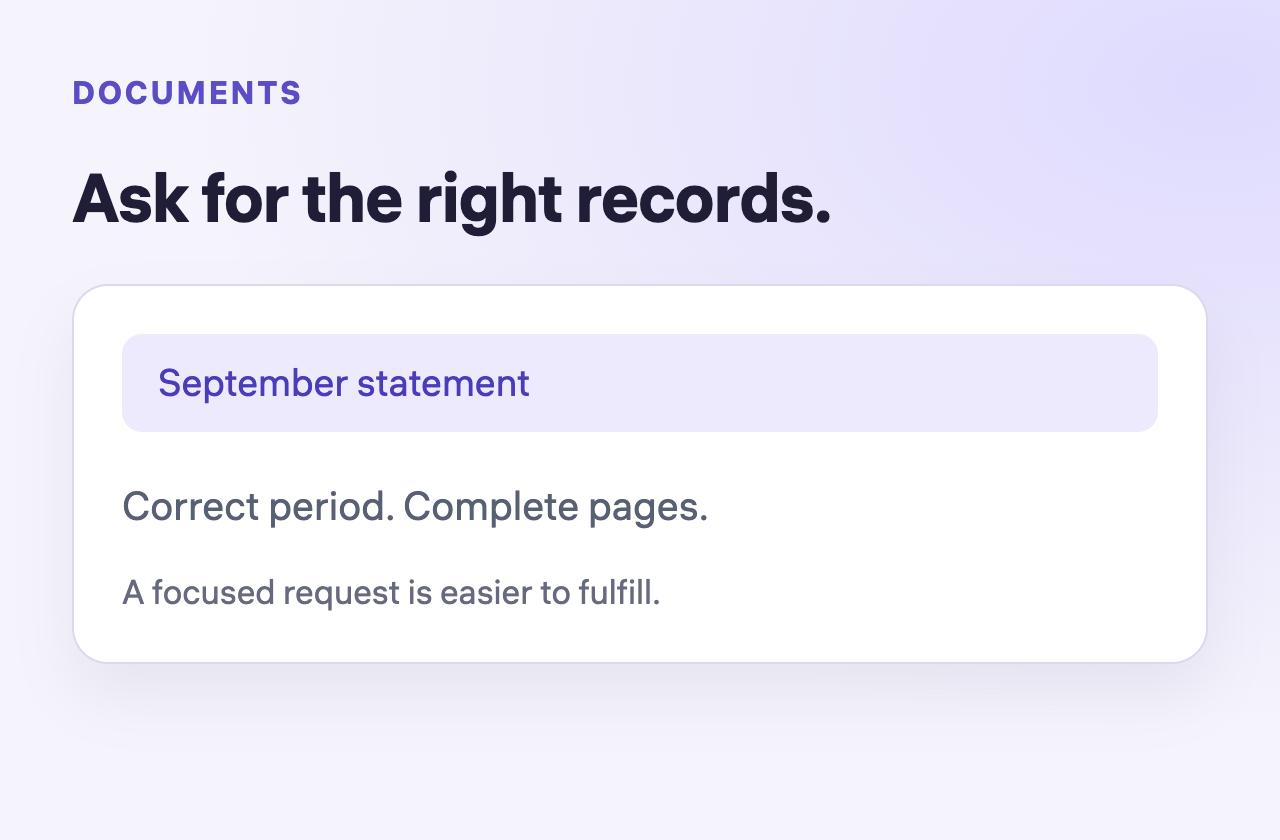
Prepare document requests and organize your files
Separate client requests from your own library and ask for clearly named records.
Read guide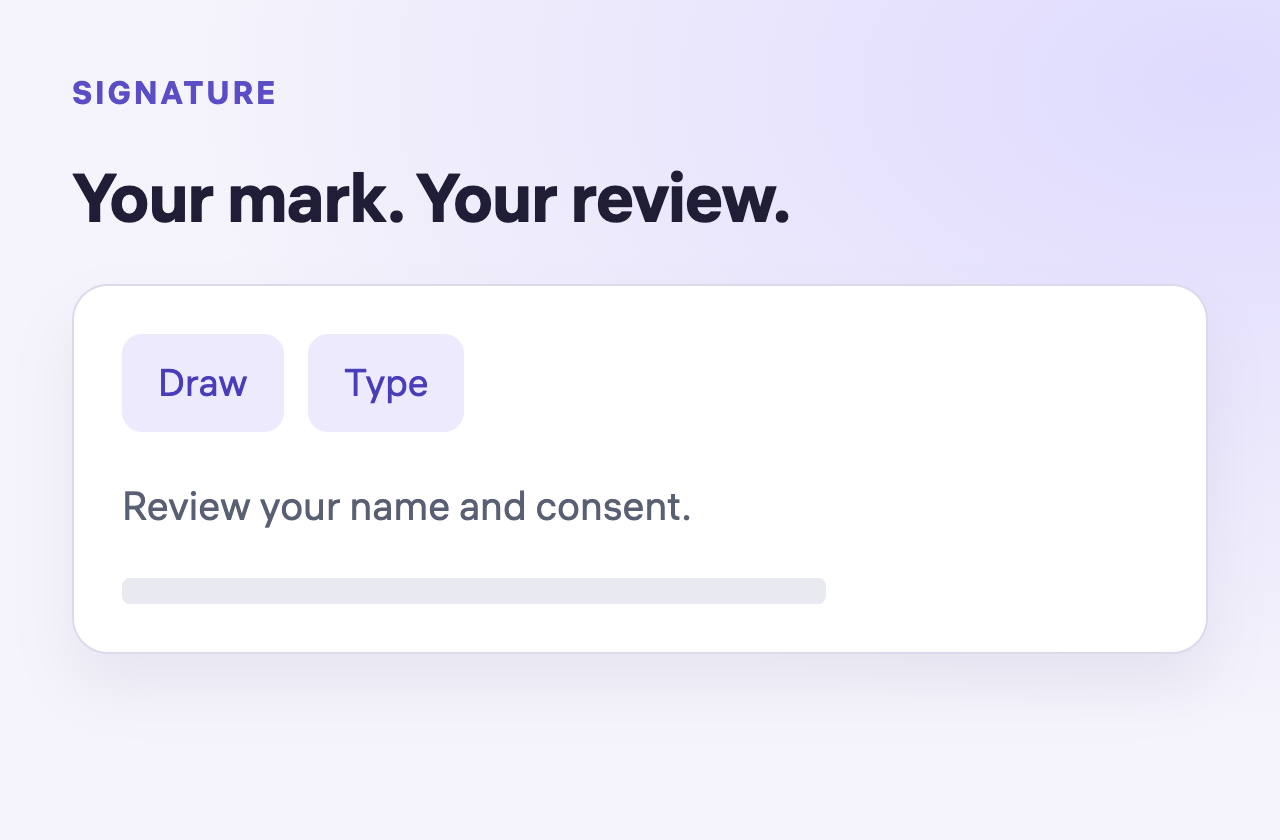
Prepare your signature and understand signing order
Find Draw and Type, review consent and separate your signature from the client’s.
Read guide