
On this page
1. Choose your opportunity mode
Open Settings in the Tax Pro sidebar, select Opportunities, then open Preferences. Find Opportunity mode.
Review First
Review each opportunity before deciding whether to secure it.
Paused
Stop receiving new Private Opportunities. Use this setting when you are not taking new opportunity work.
2. Select the services you accept
Under Services you accept, select the work your practice is prepared to provide. The choices are:
- Individuals or family tax preparation
- Tax savings strategies and planning
- Accounting or Bookkeeping services
- Retainer Fees
Your profile’s Areas of expertise describes your practice. Configure these opportunity service choices separately so you are not relying on the profile to set your matching preferences.
3. Set capacity and safeguards
Use Keep decisions inside your operating limits to review four different settings.
| Setting | What to decide |
|---|---|
| Annual-income bands | Choose a client-income preference, or No preference. This describes the client’s income range, not your fee. |
| Weekly opportunity safeguard | Choose the weekly monetary safeguard you intend to use. The displayed choices include No limit, $250, $500, $1,000 and $2,500. No limit does not set a cap. |
| New-client capacity | Choose a monthly workload preference. The displayed options are No preference, 3 per month, 5 per month, 10 per month and No limit. |
| Availability | Choose Available now or Paused for opportunity work. |
A monthly capacity preference is not a forecast of how many clients you will receive. Continue to review the price and fit of each opportunity before making a purchase decision.
4. Save, then check your selections
Select Save preferences. Before leaving the page, review the selected mode, services, safeguard, capacity and availability. Reopen Preferences to check that the choices you intended are still displayed.
If the page displays a validation error, correct the named field and save again. If a selection reverts, keep a sanitized screenshot and note the time and setting that changed; do not assume it was saved.
Example: room for three bookkeeping clients
You offer bookkeeping and have room for three additional clients this month. Select Accounting or Bookkeeping services, choose 3 per month, and use Review First so you can inspect each request. Choose a weekly safeguard that fits your own purchasing budget.
This records your preferences. It does not promise three matches or three paying clients.
Keep the three kinds of availability separate
- Opportunity availability: whether you are open to new opportunity work.
- New-client capacity: your monthly workload preference.
- Appointment availability: the days and time ranges you set in Settings → General → Availability.
After your preferences are in place, review Alert Settings for notifications and Billing & Credits for your opportunity balance and payment method.
Choose your acceptance mode and weekly cap
In Settings → Opportunities → Preferences, choose Review First to decide on each opportunity, Auto-Accept to authorize automatic opportunity purchases within your saved preferences and weekly cap, or Paused when you are not accepting new opportunity work.
Weekly opportunity safeguard is an enforced weekly spending cap. Choose an amount that fits your practice. No limit removes that cap. Funding your balance and increasing the cap are separate decisions.
Review your services, availability and client capacity, then select Save preferences. Reopen the page to confirm the selected mode and cap.

Common questions
Does selecting expertise also set matching preferences?
Configure them separately. Areas of expertise is on your profile; Services you accept is in Opportunity Settings. Select the opportunity services you want here, even if similar specialties appear on your profile.
Is Auto-Accept available?
Auto-Accept is available for automatic opportunity purchases within saved preferences and a weekly cap. Use Review First for individual decisions or Paused when you are not taking new opportunity work.
Does choosing 3 per month guarantee three clients?
No. It is a capacity preference, not a guarantee of matches, accepted opportunities or client engagements.
Does Paused cancel an appointment or an existing job?
Opportunity mode is about receiving new Private Opportunities. Manage appointments and existing jobs in their own areas; do not use this preference as a cancellation action.
Are these my appointment hours?
No. Set appointment days and time ranges under Settings → General → Availability. Review those hours separately from opportunity capacity.
Learn more
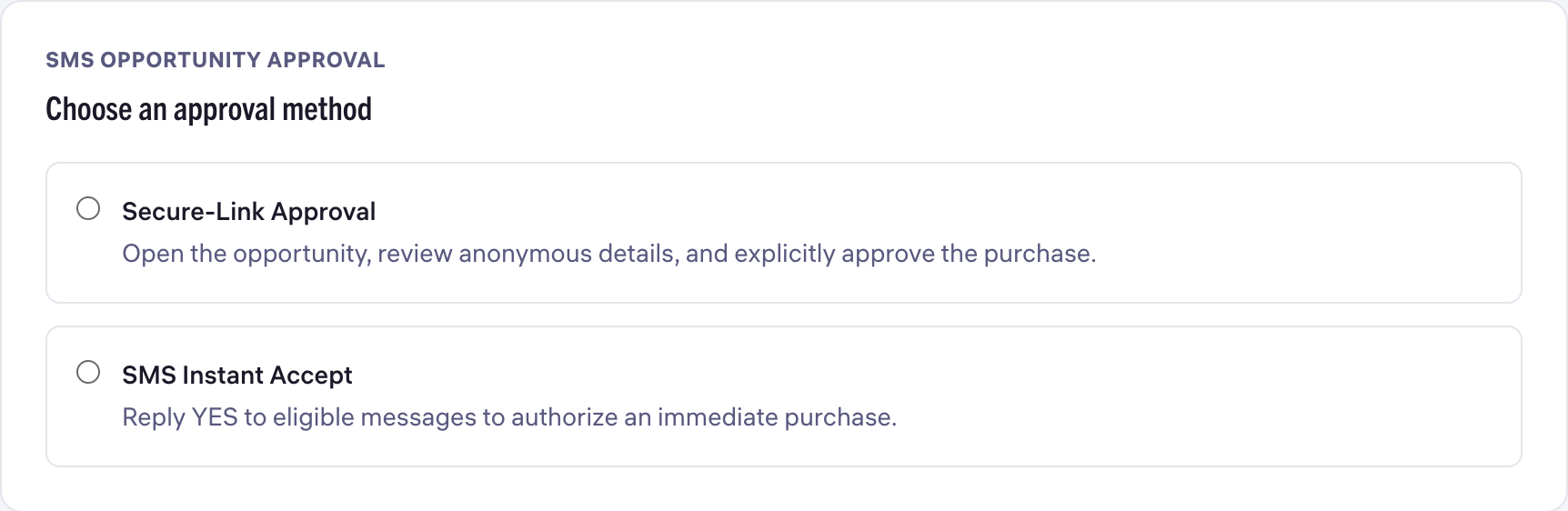
Choose opportunity alerts and SMS approval
Separate notification channels from SMS purchase approval.
Read guide
Review an opportunity before deciding
Review the request, qualification details, status and total.
Read guide
Before you accept an opportunity
Check fit and cost, and know where to look if a decision is unclear.
Read guide