
On this page
1. Check your starting point
In the Tax Pro sidebar, open Settings → Opportunities, then choose Billing & Credits. The summary has three separate items:
- Opportunity credits: the balance shown for opportunity spending.
- Weekly spend: activity for the week and the spending-safeguard message.
- Saved payment method: whether a card is available for this payment area.
These are separate from client earnings and payout-account setup. A saved card does not mean you have bought credits.
2. Select a pack and read its summary
Under Add opportunity credits, choose the pack you want to inspect. Before opening checkout, compare these three lines:
| Label | What it tells you |
|---|---|
| Selected credit value | The number of credits in the selected pack. |
| Amount to authorise | The payment amount you are preparing to authorize. |
| Balance after a successful payment | A projection that depends on the payment succeeding. |
A pack may include a separately labeled pilot bonus. Read the offer you select; a bonus on one pack does not apply to every purchase. Selecting a pack does not enable automatic replenishment.
3. Open the purchase review
Select the Review … purchase button. Its amount reflects the selected pack. In Confirm your credit refill, read Amount to authorise, Credits added after payment, New credit balance and Additional fees.
Compare the review with the pack you intended to select. If it is wrong, use Back or close checkout and review the selection again. Do not treat the displayed new balance as a receipt.
4. Keep card setup and payment separate
If the review says Add a card to continue, the form asks for Name on card, Card number, Expiry, CVC and ZIP / Postal code. It also offers Use this card by default. Enter payment information only in the product’s payment form.
Use Add a card in the Saved payment method summary to open the standalone dialog. This dialog describes saving a card for opportunity credits without charging it at that moment. After card setup, read the next payment action and its amount before authorizing anything. Saving a card, reviewing a pack and completing a purchase are different states.
5. Check the result in credit history
After a payment attempt, return to Billing & Credits. Review the balance and Marketplace credit history → Credits and secure-access activity. Keep the payment result and reference if one is provided.
If the result is unclear or the balance does not match the outcome you expected, check the existing attempt before paying again. A closed window or a projected balance alone does not establish whether a payment succeeded.
Choose a funding package
Opportunity funding comes in $250, $500 and $1,000 packages. There are no packages below $250. You can buy additional packages as needed; $1,000 is not a total-spending ceiling.
These amounts are US dollar funding amounts, not quantities of leads or guaranteed clients. The number of opportunities you can secure depends on the individual prices.

Before paying, review the exact dollar total, credits received, any separately listed bonus and your balance after successful payment. Buying a package does not enable Auto-Accept, raise your weekly cap or authorize automatic refills.
Common questions
Does selecting a credit pack charge my card?
No. Pack selection leads to a separate purchase-review step. Read the payment action and amount before authorizing a purchase.
Does saving a card add credits?
No. A saved payment method and a completed credit purchase are different things. Check the payment result, balance and credit history.
Is “New credit balance” proof that payment succeeded?
No. On the review screen it is a projection. Check the result after the payment attempt.
Does this turn on auto-reload?
No. The pack-selection and checkout explanations say the purchase does not enable automatic replenishment.
Learn more

Understand credits, prices and charges
Find the right money area and separate opportunity costs from revenue, subscriptions and training purchases.
Read guide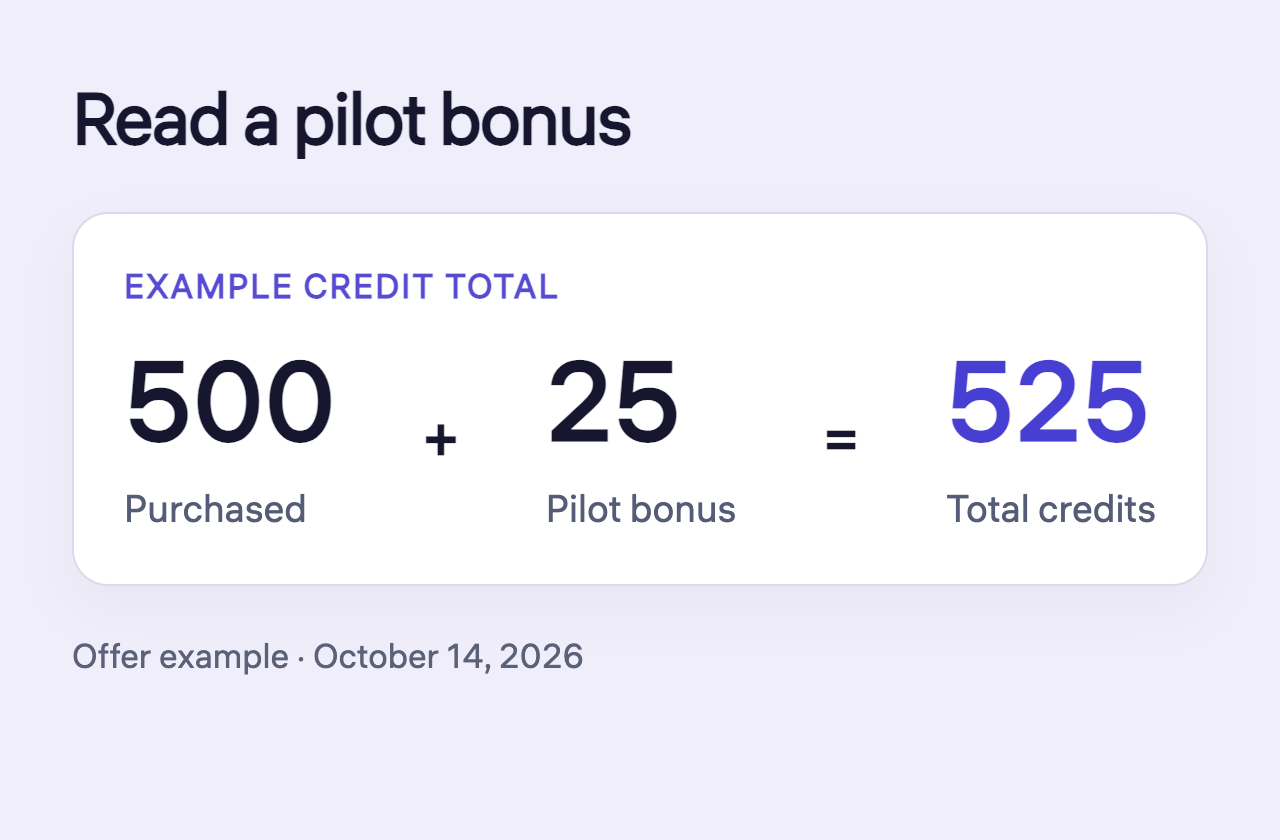
Read pilot bonuses and credit adjustments
Read purchased credits, a pilot bonus and the total without counting the bonus twice.
Read guide
Check a payment issue before trying again
Distinguish a declined attempt, pending entry and missing credits before starting another payment.
Read guide