
On this page
1. Choose your alert channels
Open Alert Settings in Opportunity Settings. Under How you receive opportunity updates, review In-app opportunity alerts, Email opportunity alerts, SMS opportunity alerts, and Expiry and payment-recovery alerts.
Select the channels you want. Review the email or mobile destination associated with the channel before relying on it. The channel choices determine how you receive updates; they are not the same control as the SMS approval method.
2. Compare the two SMS approval methods
| Method | What the option says | What to pay attention to |
|---|---|---|
| Secure-Link Approval | Open the opportunity, review its details and explicitly approve the purchase. | Review the opportunity and amount before approving. |
| SMS Instant Accept | Reply YES to eligible messages to authorize an immediate purchase. | A YES reply is described as purchase authorization, not just an acknowledgement. |
Read the selected option and the message before responding. Receiving an SMS alert is different from replying to a message that authorizes a purchase.
3. Save and check the selected method
Select Save alert settings. Reopen Alert Settings to check the channels and approval method that are selected for your account.
Do not rely only on a panel labeled Default. Check the actual selected option. If neither choice appears selected or the saved result is unclear, resolve the setting before using a reply as purchase authorization.
If neither approval option appears selected: do not treat the separate Default card as a saved choice. Check the selected radio control after saving and reopening the page. Resolve an unclear setting before replying to a message that may authorize a purchase.
If you are not receiving an alert
- Check that the intended channel is selected in Alert Settings.
- Check the associated destination and its verification status.
- Review the saved settings and look in the app’s notification panel and For Review area.
- For email, also check filtering or spam. Record the time and expected channel if you need help investigating a missing alert.
Do not change your approval method just to troubleshoot delivery. These settings serve different purposes.
SMS approval and Auto-Accept are separate
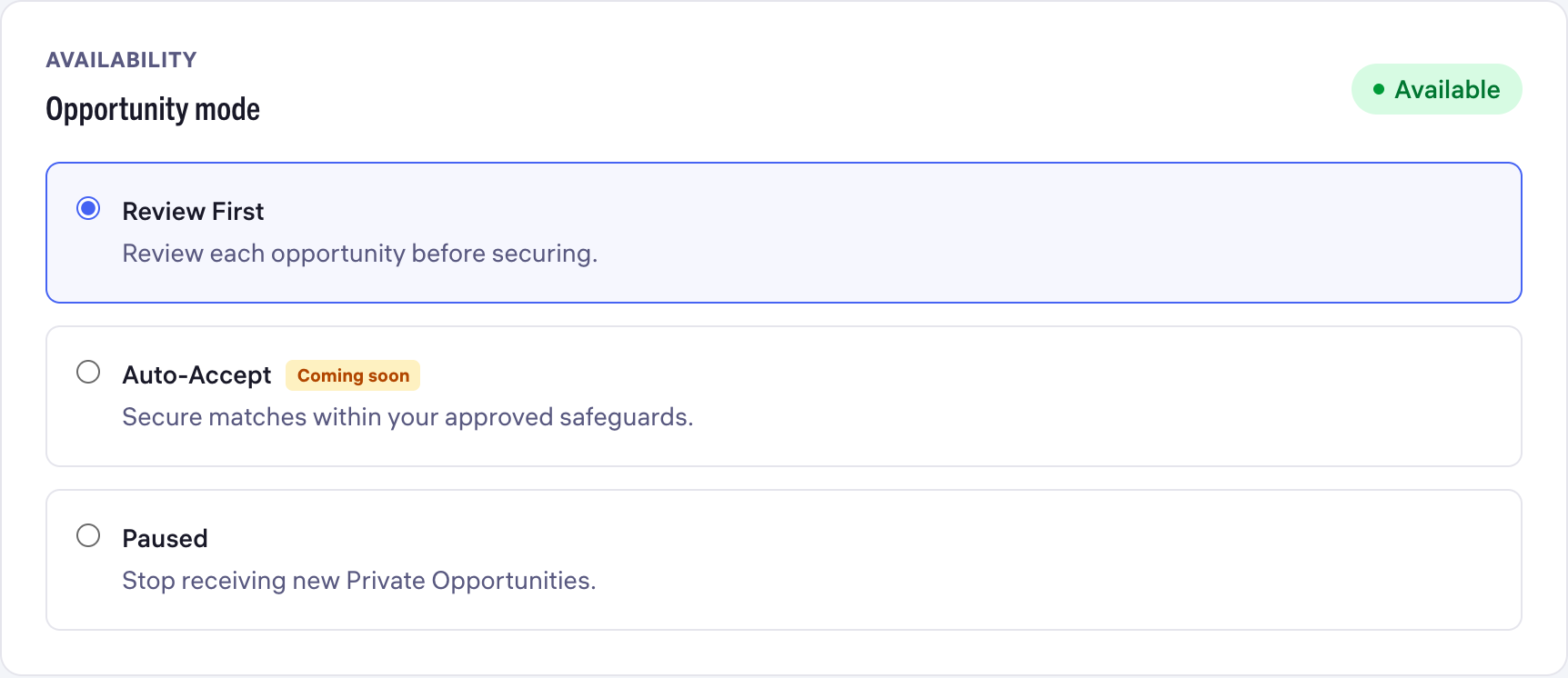
SMS purchase approval describes how you respond to an eligible message. Auto-Accept is an opportunity mode that authorizes automatic purchases within your saved preferences and weekly cap. Review the authorization attached to each before enabling it.
Common questions
Can replying YES buy an opportunity?
The SMS Instant Accept option explicitly describes YES as authorization for an immediate purchase on eligible messages. Secure-Link Approval instead opens the opportunity for review and explicit approval. Check your selected method before responding.
Is receiving an alert the same as accepting?
No. Receiving a notification and taking a purchase-authorization action are different steps.
Is SMS Instant Accept the same as Auto-Accept?
No. SMS Instant Accept is an approval method in Alert Settings. Auto-Accept is a separate available Opportunity mode with its own purchase authorization and weekly cap.
Learn more
Set your opportunity preferences
Choose services, availability, capacity and a weekly safeguard.
Read guide
Review an opportunity before deciding
Review the request, qualification details, status and total.
Read guide
Before you accept an opportunity
Check fit and cost, and know where to look if a decision is unclear.
Read guide