
On this page
Choose the right work area
| You want to… | Open… |
|---|---|
| Review a new client opportunity | Opportunities → For Review |
| Find opportunities you have secured | Opportunities → Secured |
| Look up a prospective client or their intake | Leads |
| Read or start a conversation | Messages |
| Find a contact to call | Calls |
| Manage engagements | Jobs |
| Organize your uploaded files | Documents |
| Browse organizers | Tax Forms |
| Manage scheduled meetings | Appointments |
Read the dashboard
The dashboard has cards for Active jobs, Completed, Clients and Earnings. Below them are the six-month earnings chart, pending milestones, outstanding balance and recent jobs.
A new account may show zero activity and No jobs yet. That means this dashboard has no job activity to display; it does not tell you that every other work area is empty. Check Leads and Opportunities separately.
Set up your practice
Open Settings → General → Profile to add your business information and expertise. Then open Settings → Opportunities to choose opportunity services, capacity, alerts and billing settings.
Keep the two tasks separate: your profile explains who you are; opportunity preferences describe the new work you are prepared to review.
Open tax tools and training
Open the account menu at the top of the workspace. The menu includes Tax Plan Generator and Courses. These open separate Uncle Kam tool and training areas with their own navigation.
When you need to change a setting, first check which application you are in. A training purchase, an opportunity credit balance and your client revenue are different records.
Common questions
Why is my dashboard empty?
A new or inactive account may have no jobs or earnings to display. Open the relevant work area to check its records; a dashboard zero does not prove that your lead list or opportunity history is empty.
Where should I start?
Complete your practice profile, set your opportunity preferences, then learn what to review on an opportunity. You can also use this Help Center to go directly to the task you need.
Learn more

Complete your business profile and specialties
Add your practice details, specialties and introduction.
Read guide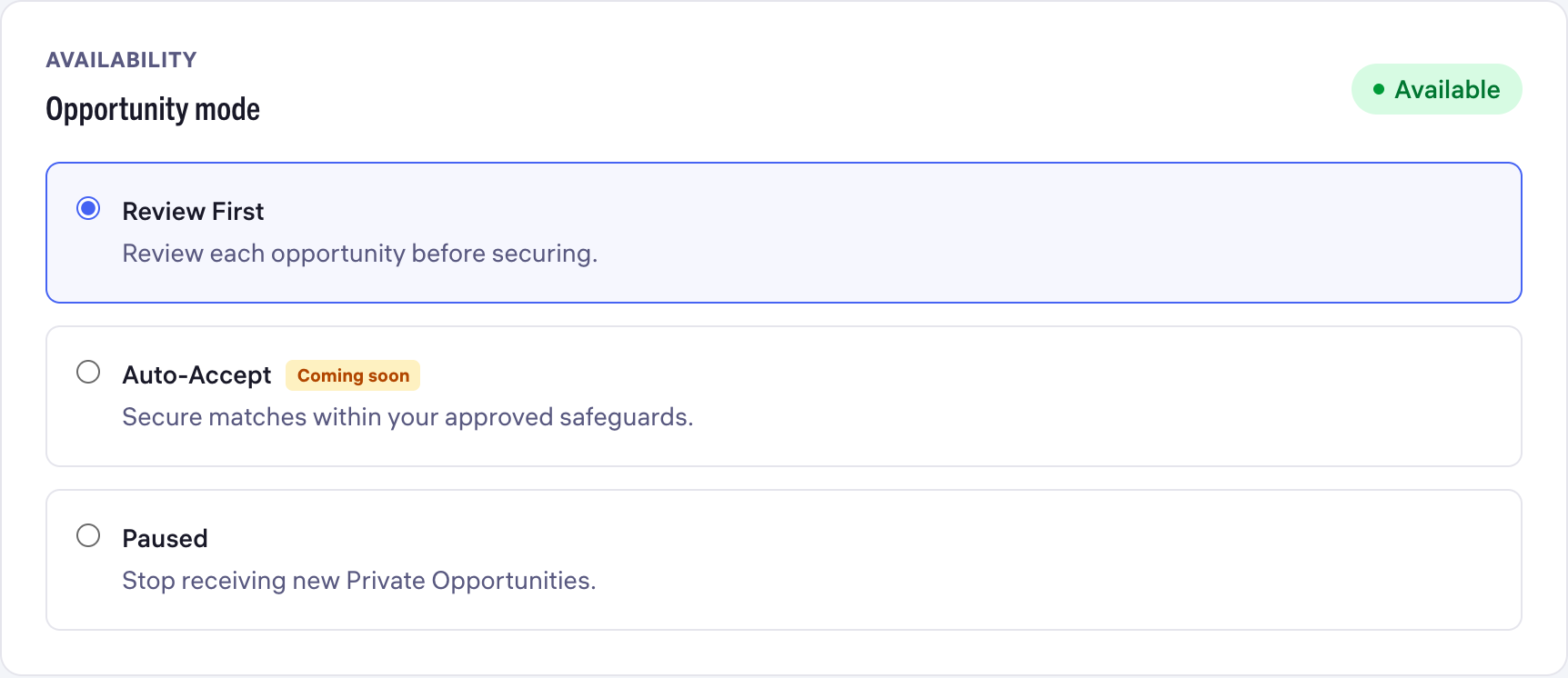
Set your opportunity preferences
Choose services, availability, capacity and a weekly safeguard.
Read guide
Review an opportunity before deciding
Review the request, qualification details, status and total.
Read guide