
On this page
1. Open your signature settings
Choose Settings → General, then Signature. Under Your signature, select Add signature if you have not added one.
The empty state says jobs cannot be sent for signing until you add a signature. The page describes the saved signature as reusable on client agreements, so check the name and mark carefully before adopting it.
2. Choose Draw or Type
The Add your signature dialog offers Draw and Type. Type exposes a Full name field and style choices. Enter your own signing name and inspect the chosen style. Use Draw if you intend to draw your mark instead.
The pictured editor is blank and unadopted. A style preview is still preparation; it does not show a signed agreement.
3. Read the consent before adopting
Review the electronic-signature consent in the dialog. If you intend to adopt that mark under the displayed terms, complete the required choices and use Adopt signature. If the name or mark is wrong, correct it first or use Cancel.
After adoption, return to the Signature tab and check the saved result before using it on an agreement. When preparing a particular engagement, also review the agreement itself; having a saved signature does not replace that review.
4. Understand who signs first
The contract builder’s E-Signature Field Guide says the professional’s signature goes on first, so the client receives an agreement already countersigned by the professional. It also says an admin cannot sign on the professional’s behalf.
If an admin prepares a job for a professional who has no signature, the guide says the professional must add one before the contract can be sent. Check the actual client signing state on the agreement afterward; do not infer the client’s signature from your saved mark.
Common questions
Does a saved signature mean the client has signed?
No. Your saved mark and the client’s signing state are separate. Inspect the agreement to confirm the client’s response.
Can an admin sign for me?
The E-Signature Field Guide says an admin cannot sign on a tax professional’s behalf.
Why is Adopt signature disabled in the image?
The example is blank and the consent is unchecked. Complete and review the required choices in your own editor before adoption.
Can I use a fictional signature for a walkthrough?
Keep a walkthrough as an unsubmitted preview. Do not adopt or apply someone else’s mark to create an example agreement.
Learn more
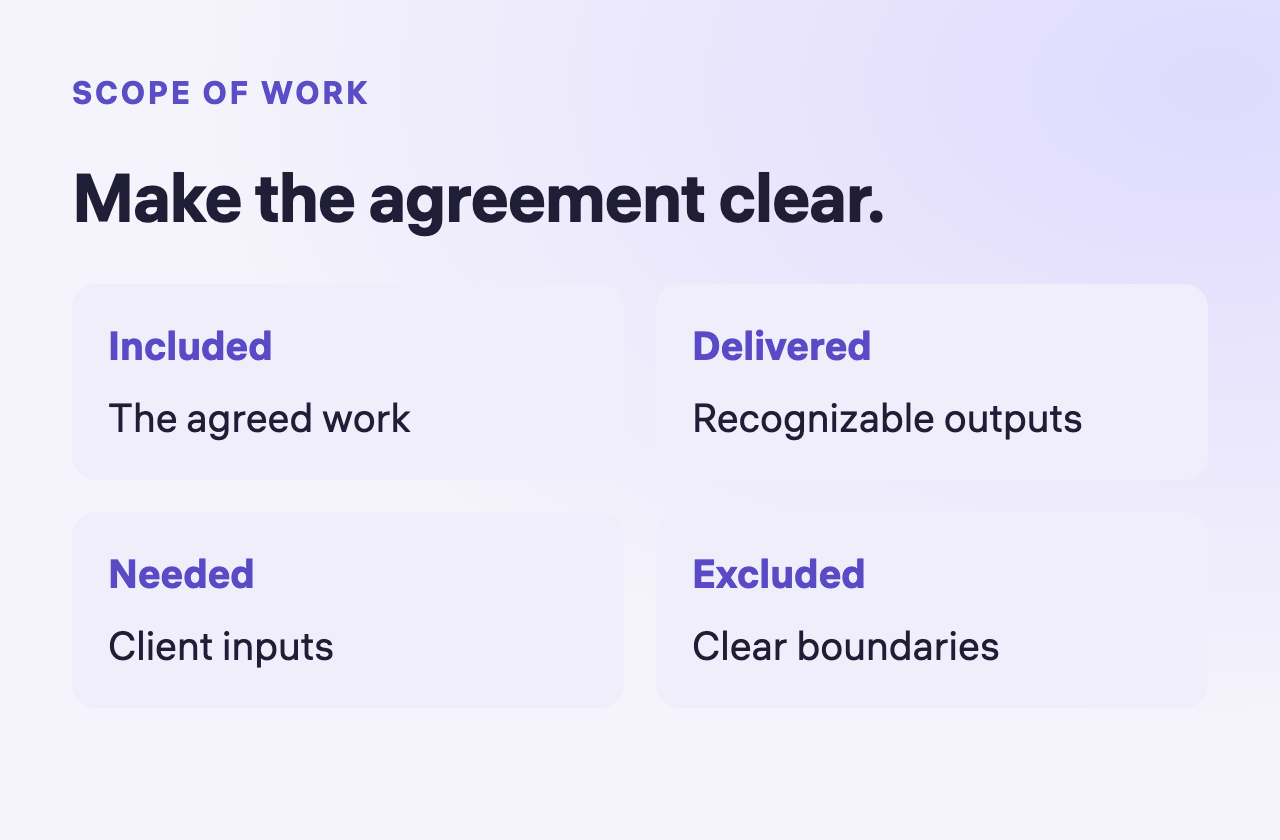
Prepare a contract and review its scope
Define the service, outputs and exclusions before reviewing the agreement.
Read guide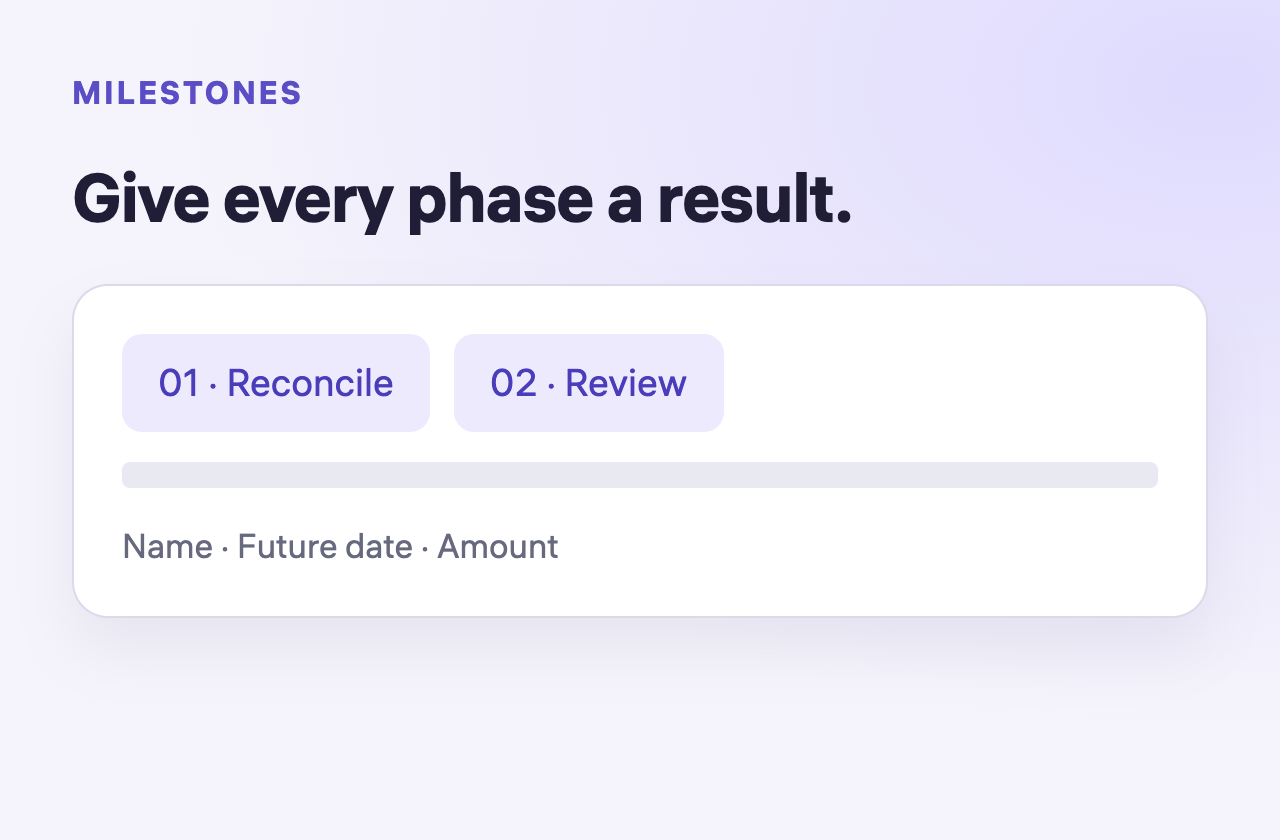
Plan milestones and read job statuses
Plan recognizable phases and distinguish job filters from actual approval or payment.
Read guide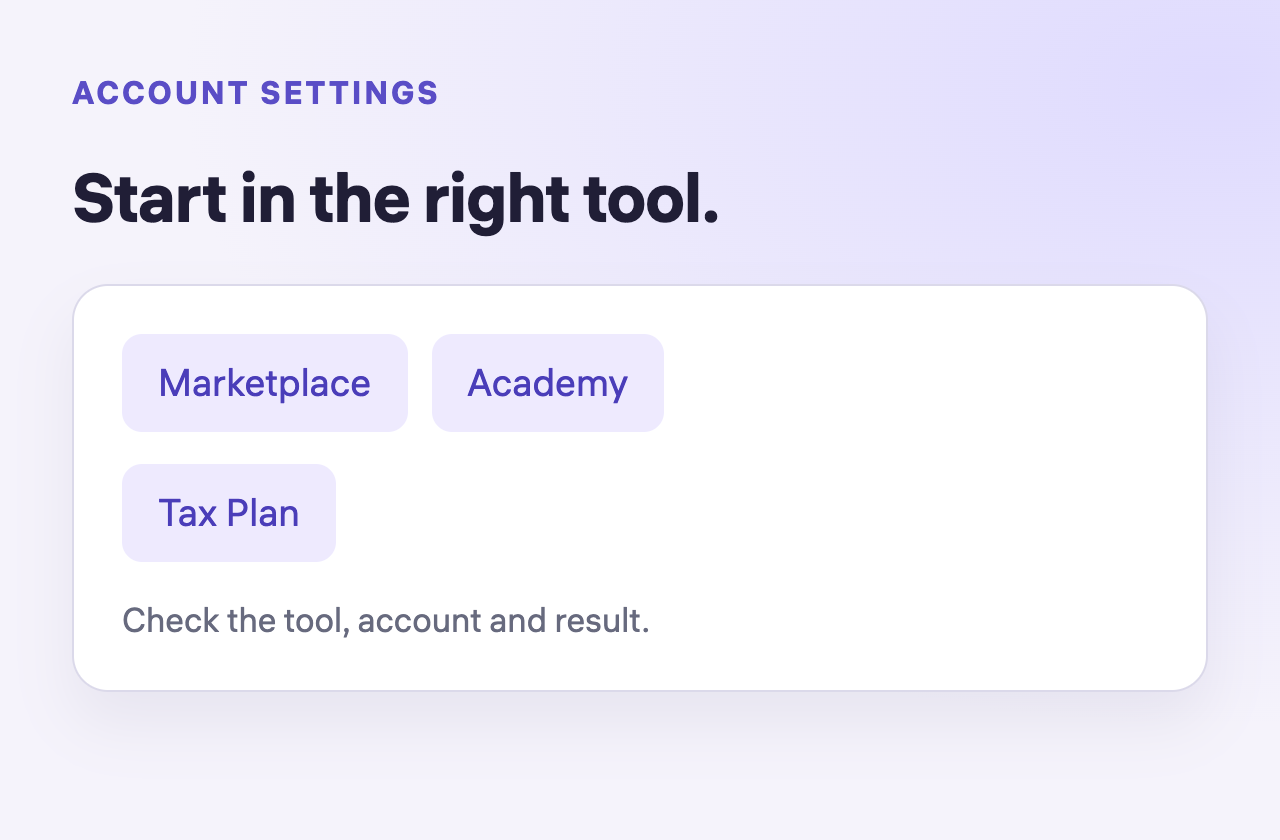
Find account settings in each Uncle Kam tool
Locate practice and security controls without assuming settings synchronize.
Read guide