On this page
1. Read the three opportunity modes
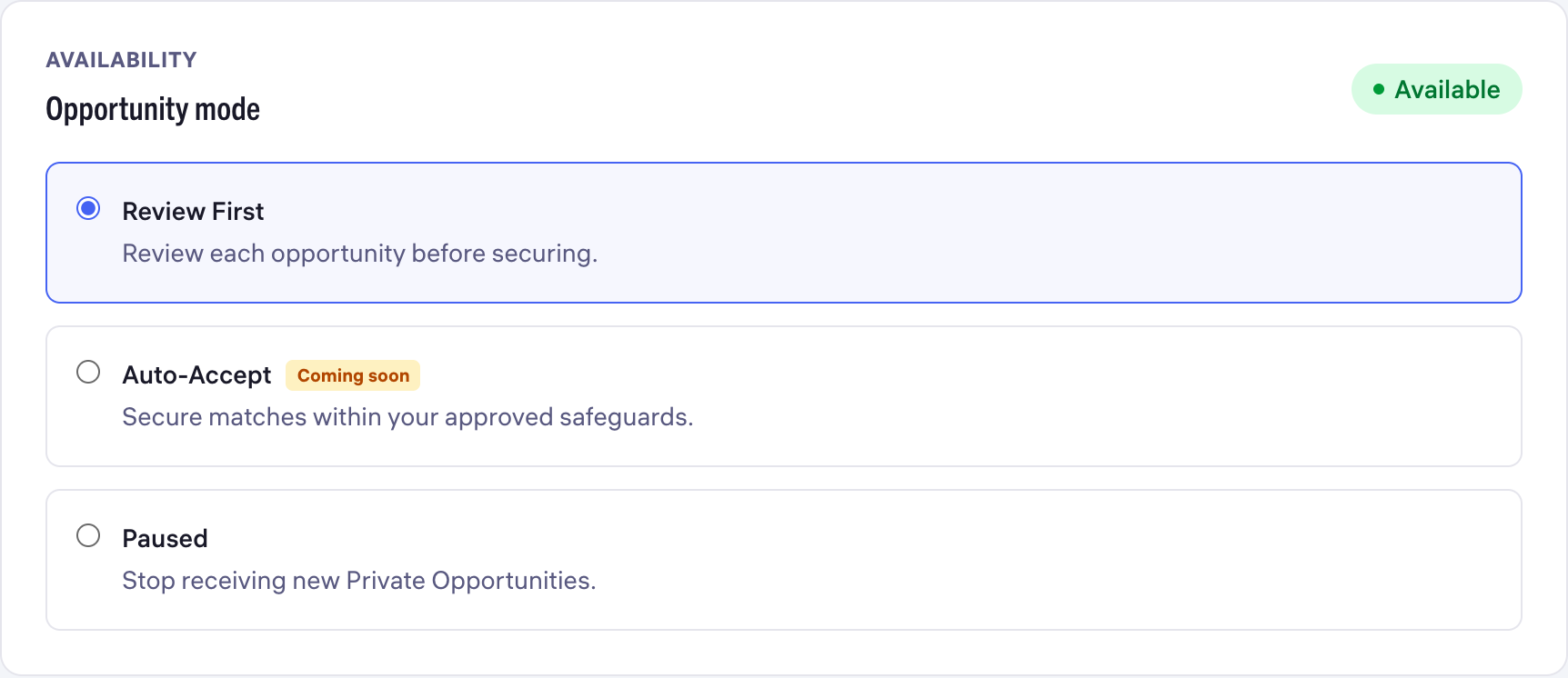
Open Settings → Opportunities, then Preferences. Under Opportunity mode, the captured interface shows Review First, Auto-Accept and Paused. Review First is selected in this example; your saved choice may differ.
| Mode | Meaning in the captured interface |
|---|---|
| Review First | Review each opportunity before securing it. |
| Auto-Accept | Available for automatic opportunity purchases within saved preferences and the weekly spending cap. Review the authorization before saving the mode. |
| Paused | Stop receiving new Private Opportunities. |
2. Choose for your actual capacity
Review First supports a deliberate review of the work, qualification details, timing and price before a securing decision. Choose it when you want that review step for incoming opportunities.
Paused is the mode described for stopping new Private Opportunities. Use your existing jobs and client commitments as a separate work list: pausing new opportunities is not a cancellation of ongoing work, a reversal of an earlier purchase or a deletion of a client record.
Your current clients need your attention for the next two weeks. Pausing new opportunities can match that capacity decision. Continue managing work already underway and review your saved preferences when you are ready to receive new opportunities again.
For the full editing sequence, use Set your opportunity preferences below. After saving an intended change, revisit Preferences and verify the selected mode.
3. Keep SMS approval separate
Alert Settings has separate delivery channels and an SMS approval method. Secure-Link Approval opens the opportunity for review and explicit purchase approval. SMS Instant Accept describes replying YES to eligible messages to authorize an immediate purchase.
Auto-Accept and SMS Instant Accept are separate settings. Read the alert settings and their authorization language directly. Receiving an alert, opening a review link and authorizing a purchase are different actions.
4. Revisit the whole setup after a change
Review accepted services, capacity and opportunity safeguards alongside the mode. Then check alert delivery and payment readiness in their own tabs. Each setting has a distinct purpose; a mode selection alone does not confirm every other preference or payment condition.
If a new offer or alert appears unexpectedly after a change, record the saved mode, the offer or message time and the relevant ID. Ask support to investigate the specific event. Avoid assuming an undocumented timing rule from a single notification.
Choose how you accept opportunities
Review First: review each opportunity and decide whether to secure it.
Auto-Accept: authorize automatic purchases within your saved preferences and weekly cap. Review the authorization before saving the mode.
Paused: stop receiving new Private Opportunities when your practice is not taking new opportunity work.
The weekly budget is an enforced spending cap. It is not a guaranteed number of opportunities or paying clients. Auto-Accept does not replace follow-up, a client agreement or delivery of professional work.
Common questions
Is Auto-Accept available in the captured interface?
Auto-Accept is available for automatic opportunity purchases within your saved preferences and weekly cap. Review the purchase authorization before saving.
Does Paused cancel my existing jobs?
No cancellation action is documented by the Paused description. It refers to stopping new Private Opportunities; manage current client work separately.
Are Auto-Accept and SMS Instant Accept the same setting?
No. Auto-Accept is an opportunity-mode option under Preferences. SMS Instant Accept is a separate approval-method option under Alert Settings.
Does receiving an alert mean I bought an opportunity?
An alert is not by itself proof of a purchase. Read the approval method: the captured SMS Instant Accept description says replying YES to eligible messages authorizes an immediate purchase.
How do I check that my intended mode was saved?
After using Save preferences, return to Preferences and confirm the selected mode. If the state differs from what you intended, record the discrepancy and ask support for help.