
On this page
1. Find the receiving-account setup
Open Settings → General, then choose Payouts. When no account is connected, the panel says No payout account connected and provides Connect payout account.
The control is the entry point to receiving-account setup. An available Connect button is not evidence that setup is complete. After working through the provider’s setup, return to the product and check the resulting account status.
The screenshot below shows the disconnected state. It illustrates the setup entry point; the provider’s later identity and banking screens depend on the account.
2. Read the correct balance
Open Billing → Overview. The labels shown are Available balance, Lifetime earnings, Outstanding and Paid out. Keep the labels with the numbers when investigating an issue.
Lifetime earnings and outstanding amounts are not a statement that the full amount is currently withdrawable. Read the account’s actual available balance and any explanation shown with it. In a disconnected account, the Withdraw area asks you to connect a payout account and the withdrawal control is disabled.
3. Open payout history
Choose Billing → Payouts, or use Payout history from the Billing overview. The screen includes a Period filter with This Year, Last Year, This Month and This Week, plus Date Withdrawn.
If a record is missing from view, check those filters before concluding it does not exist. The empty state says that no payout request has been created and that withdrawals will be listed here. A visible Request Payout control is not itself a completed request.
Payouts, fees and timing
Know what can change the amount that reaches your bank.
A payout is more than a single number. Keep the client payment, the Uncle Kam platform fee, any applicable payment-processor adjustment and the payout record separate so you can read the actual balance clearly.
The amount paid for the professional service.
30% for an Uncle Kam–supplied client, when that fee applies.
May apply based on the actual payment, payout method and account setup.
The amount shown as available after the applicable records and timing.
The payout request and its delivery status appear in payout history.
This is a sourcing fee for client payments from Uncle Kam–supplied clients. It is not a Stripe fee and it does not apply to clients you bring independently.
These are separate processing or payout charges that may apply to an account. They are not set by the 30% platform-fee rule.
Why can the Stripe-related amount or timing differ?
Stripe Connect can handle payments and payouts in different ways. The fee payer, payment method, payout type, country, currency, bank eligibility and current account configuration can change which fees apply or when funds are available. Read the actual payment, payout or connected-account disclosure for your account instead of relying on a general example.
Use the live record for the final answer. The actual invoice, payment entry, available-balance view and payout record are the source for a specific amount, fee, status or delivery date. This guide explains the layers; it does not quote a Stripe schedule as an Uncle Kam Tax Pro fee or promise a net payout.
5. Keep a payout question specific
For a question about an existing payout, note the request reference if shown, amount, displayed status, date, filters and any account-connection message. Do not include bank login credentials or full account details in a general support screenshot.
Do not infer a delivery date from a past example, a connected badge or the presence of a request button. Use the status and terms associated with the actual request.
Keep opportunity credits, client payments and payout fees separate
Opportunity Credits are used for Marketplace opportunities. Client payments create a separate service-payment record. The 30% platform fee can apply to an Uncle Kam–supplied client payment, while Stripe-related payment or payout fees can be separate again.
Do not use a credit purchase, revenue total or generic Stripe example as a payout estimate. Read how the 30% platform fee works →
Common questions
Does adding a card for credits set up payouts?
No. The credit-payment form and the receiving-account setup are separate. Find receiving-account setup under Settings → General → Payouts.
Does “No payout account connected” mean I have no earnings?
No. It describes the connection state. Review the separate earnings and available-balance labels under Billing.
Does the Request Payout button mean a payout was requested?
No. Check the actual request result and payout history.
Why might a record be missing from my view?
Check the Period and Date Withdrawn filters, then inspect the relevant account and request reference.
Is Stripe’s fee part of Uncle Kam’s 30% platform fee?
No. The 30% is Uncle Kam’s sourcing fee for client payments from Uncle Kam–supplied clients. Stripe-related processing or payout charges are separate and depend on the actual account configuration and payment or payout method.
Who pays a Stripe-related fee?
That depends on the Stripe Connect payment flow and current account configuration. Check the actual payment or payout disclosure for your account; Support can help route a specific record but cannot determine the final amount from a generic example.
Can I assume an Instant Payout is available?
No. Instant payout availability, eligibility, timing and any related charge depend on the connected account, external account, country and current configuration. Use the option only when it is offered in your account and review its displayed terms.
Learn more
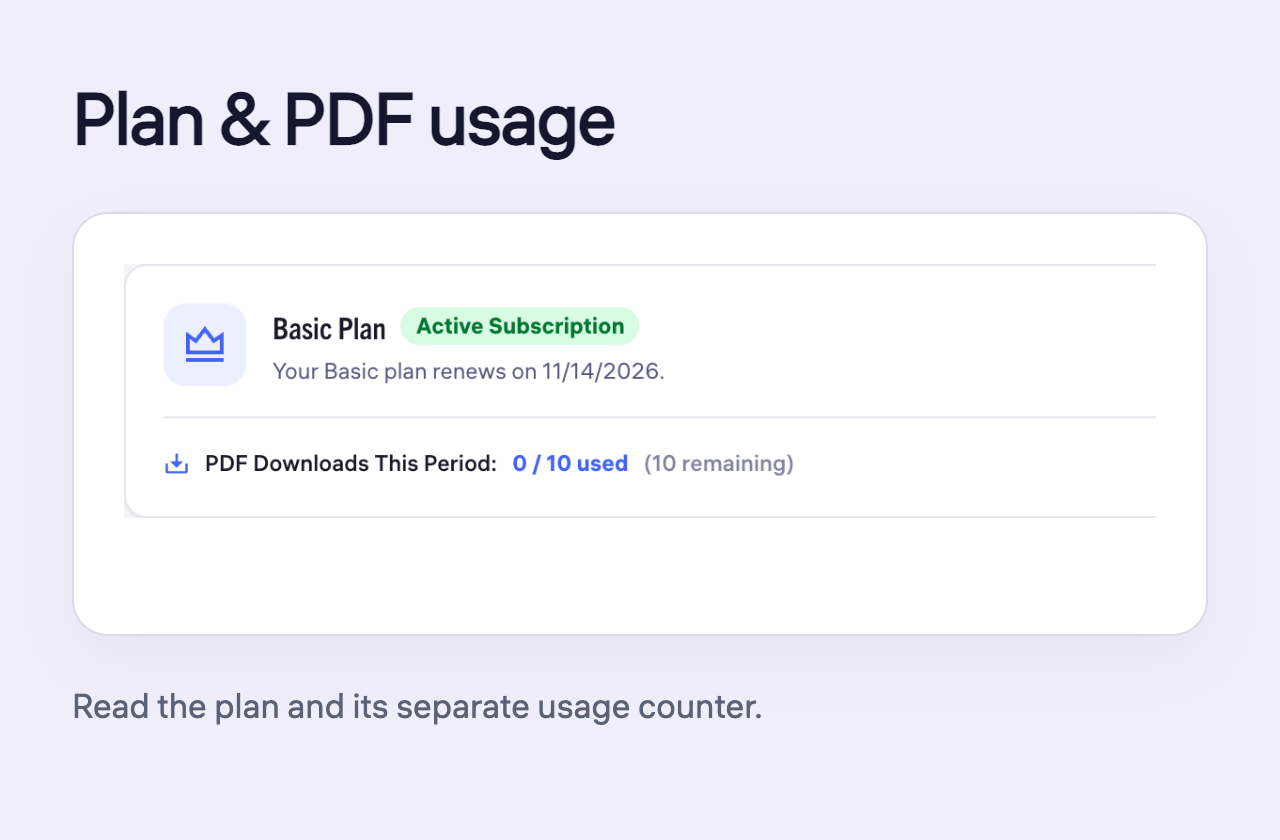
Read your plan, invoices and PDF usage
Identify what an invoice represents and read the plan and PDF usage for your account.
Read guide
Understand credits, prices and charges
Find the right money area and separate opportunity costs from revenue, subscriptions and training purchases.
Read guide
Check a payment issue before trying again
Distinguish a declined attempt, pending entry and missing credits before starting another payment.
Read guide