
On this page
1. Find the secured opportunity
Choose Opportunities in the sidebar, then Secured. The page is headed My opportunities. Use Search secured opportunities and the service and status filters to narrow the list.
The page says contacts are shown after successful acceptance. If you have only reviewed an offer or opened its payment screen, first check its actual acceptance result; those earlier steps do not establish that contact details have been released.
2. Recover an empty search
Clear the search, set All services and All statuses, then inspect the list again. If it still says No secured opportunities yet, there are no secured records displayed for this account and view.
Keep any acceptance reference with the offer you are investigating. An empty result can tell you what this view contains; it does not prove that a payment failed, that a lead was deleted or that an engagement was signed.
3. Open the client’s lead record
Choose Leads. Search by name and use All time if a recent-date filter is hiding the record. Open the matching name and confirm that you have the intended person before using their information.
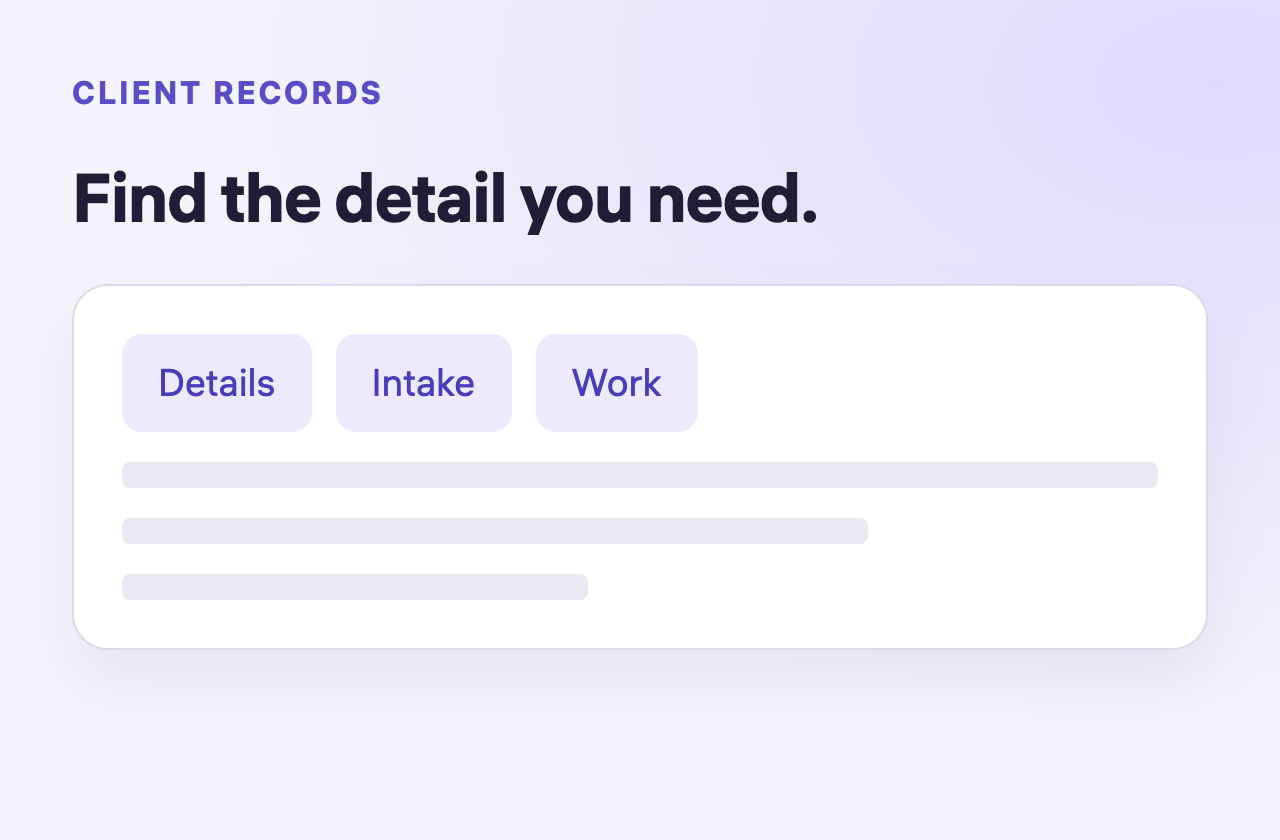
| Tab | What to look for |
|---|---|
| Details | Contact fields, assignment information and the lead status. |
| Questionnaire | Intake questions and the response state. |
| Jobs | Jobs associated with this lead; an empty example offers Create Job. |
| Documents | Files associated with the lead. |
Secured opportunities and Leads are separate navigation areas. Follow the record links actually present in your account; the example below demonstrates a lead’s tabs.
4. Keep each stage distinct
An opportunity can be secured while the lead’s Jobs tab says No jobs created yet for this lead. That means you should inspect the job area before assuming there is an agreed engagement to begin.
Likewise, a questionnaire marked Not yet answered is still missing intake answers. Use those distinctions to decide whether your next task is first contact, intake review or preparing the work.
Common questions
Why can’t I find a secured opportunity?
Clear the search and service/status filters, confirm the account, and compare the actual acceptance result and reference. The empty view alone does not establish the outcome of acceptance.
Where are the client’s intake answers?
Open the lead record and choose Questionnaire. Read the response state before treating the listed options as submitted answers.
Does Secured mean a job is signed?
No. Inspect Jobs and the actual agreement state separately. Secured opportunity, lead and job records describe different stages.
Learn more
Find and filter secured opportunities
Find records with the actual status choices and recover an empty filtered view.
Read guideReview a lead before first contact
Build a useful known-and-unknown brief before your first conversation.
Read guide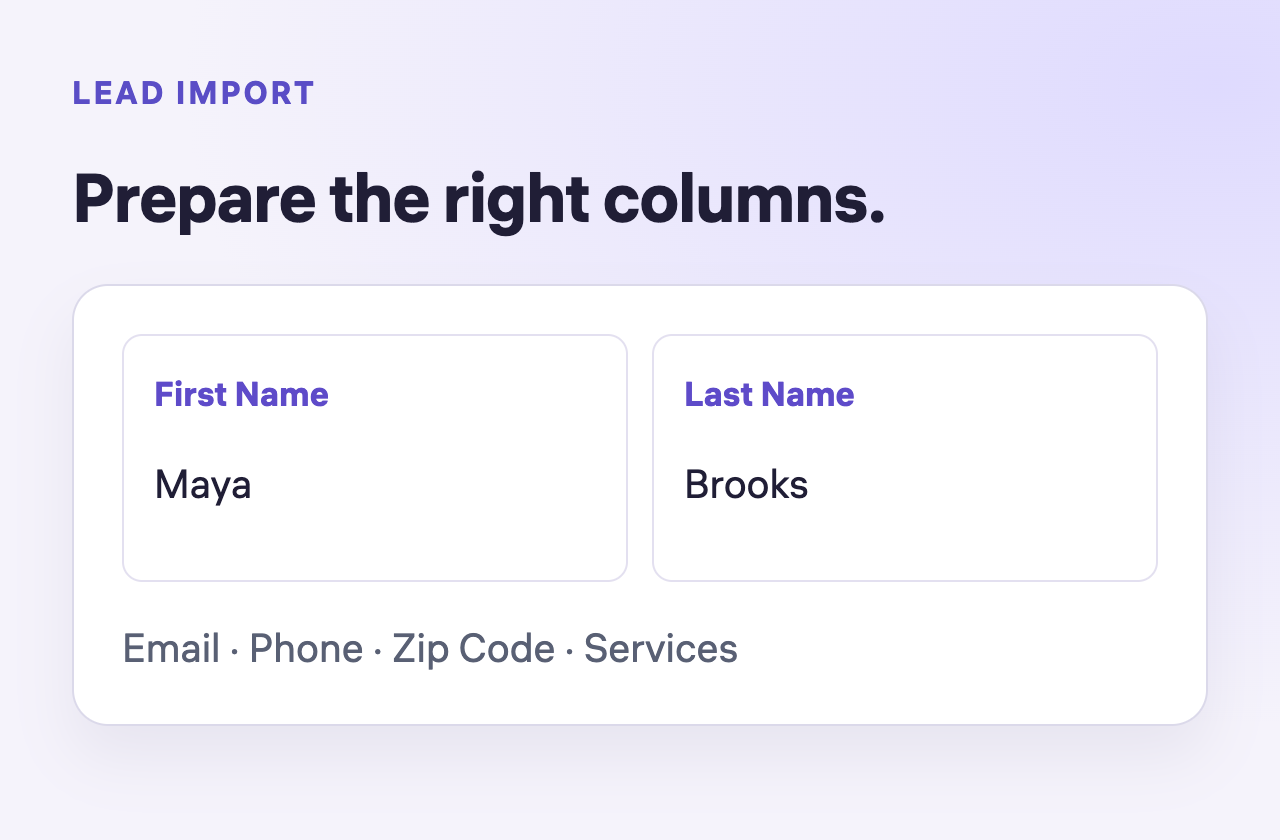
Add a lead or prepare a spreadsheet import
Choose manual entry or prepare the six spreadsheet columns correctly.
Read guide